How to Play a Radio Stream URL Online
Paste a stream link and it's added to your library in seconds — no directory, no approval, no app to install.
Most radio apps only let you play what's in their own catalogue. RadioPit takes the opposite approach: paste any internet radio stream URL — MP3, AAC, HLS (.m3u8), or SHOUTcast/Icecast — and it's added to your library and playing within seconds.
Steps
-
Open RadioPit. Click "Try demo stations" to play with it right away, or create a free account if you want your stations saved permanently.
-
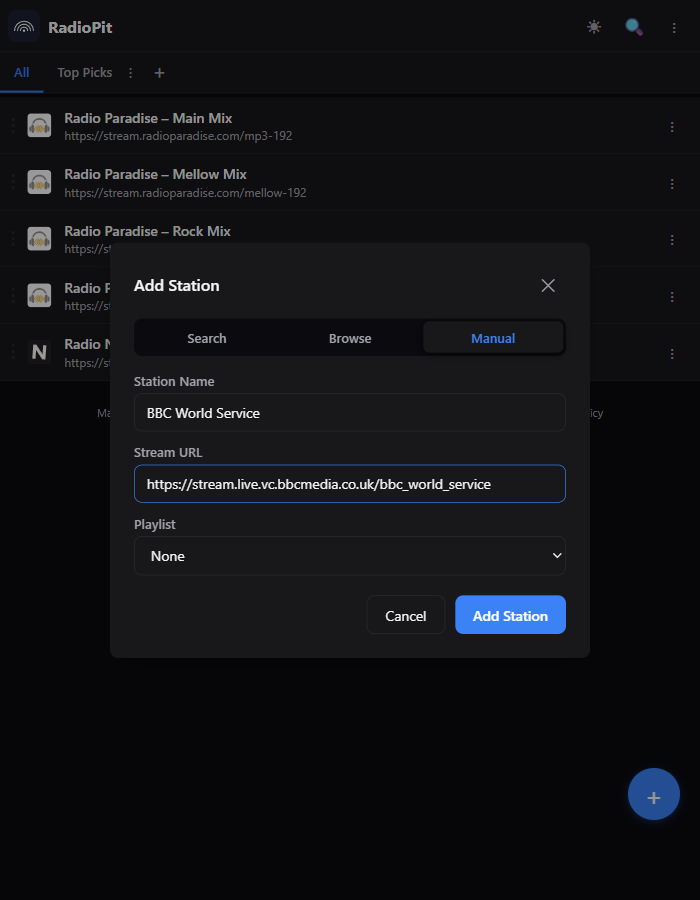
Click the round + button in the station list, then switch to the Manual tab (the other two tabs search RadioPit's built-in directory instead of taking a URL directly).
-
Enter a name and paste the stream URL into the two fields, exactly as the station provides it.
-
Click "Add Station." It appears in your library immediately — click it to start playing.
Where do I find a stream URL?
A "stream URL" is a direct link to the audio, not the station's homepage. A few reliable ways to get one:
- Look for a "Listen live," "Direct link," or "Stream" link on the station's own website — right-click it and choose Copy Link Address rather than clicking it.
- If the station only offers a "Listen" button that opens a player, check the page source or the browser's network tab for a URL ending in a format like
.mp3,.aac,.m3u8, or a query string withstreamin it. - An
.m3uor.plsplaylist link works too — RadioPit resolves it automatically and finds the real stream inside. See the M3U playlist guide for more on this. - Don't want to hunt for a URL at all? Use the Search or Browse tabs instead — they search a directory of 40,000+ stations and fill in a working URL for you.
Why this works in a browser at all
Plenty of stations still serve plain http:// or skip the CORS headers a browser normally requires on an HTTPS page — which is why pasting a raw stream link into most web audio players fails silently. RadioPit routes playback through its own server-side proxy automatically, so this isn't something you need to configure — most reachable MP3, AAC, HLS and SHOUTcast/Icecast streams just work. The exceptions are streams that require their own authentication, or use a format the proxy doesn't handle. See supported formats and how the proxy works on the Features page for more detail.
Try it now — pasting a URL takes about ten seconds.
Open RadioPit